A website platform migration moves your content to a new CMS or site builder, but design, URLs, forms and integrations must be rebuilt or reconnected. This guide starts after you have chosen the platform (our platform comparison guides cover the choice).
If you want help with the move, start with the web design studios we have compared side by side. If you run an online store, the studios that build and move online stores are listed separately.
Below you will find what usually carries over, what the official import tools cover as of Nov 24, 2026, how to scope and budget the work, and a six-step plan with a worksheet you can copy.
What Counts as a Website Platform Migration?
Five different moves get called a "migration": a platform change, a hosting move, a domain change, a URL structure change, and a redesign launched together with a platform change. This guide covers the first one, which often arrives bundled with the last.
- Platform or CMS change: your content moves from one CMS or site builder to another, for example from WordPress to Webflow. This is the subject of this guide.
- Hosting move: the software stays the same and the site moves to a different host, for example a WordPress site moving to a new server.
- Domain change: the site moves to a new domain name, for example after a rebrand.
- URL structure change: platform and domain stay put, but paths change, for example moving articles out of dated folders into shorter paths.
- Redesign with a platform change: a new look and a new system launch on the same day, for example a new brand identity built on a different CMS.
A platform change forces a rebuild of the theme or templates, so it often carries design work with it. If you are not yet sure a platform move is the right fix, read how to decide between a redesign, a refresh and a replatform first.
Next step: write down which of the five moves you are making. Many projects are two at once (a platform change plus a domain change, say), and each one adds work to the scope.
What Moves and What You Rebuild
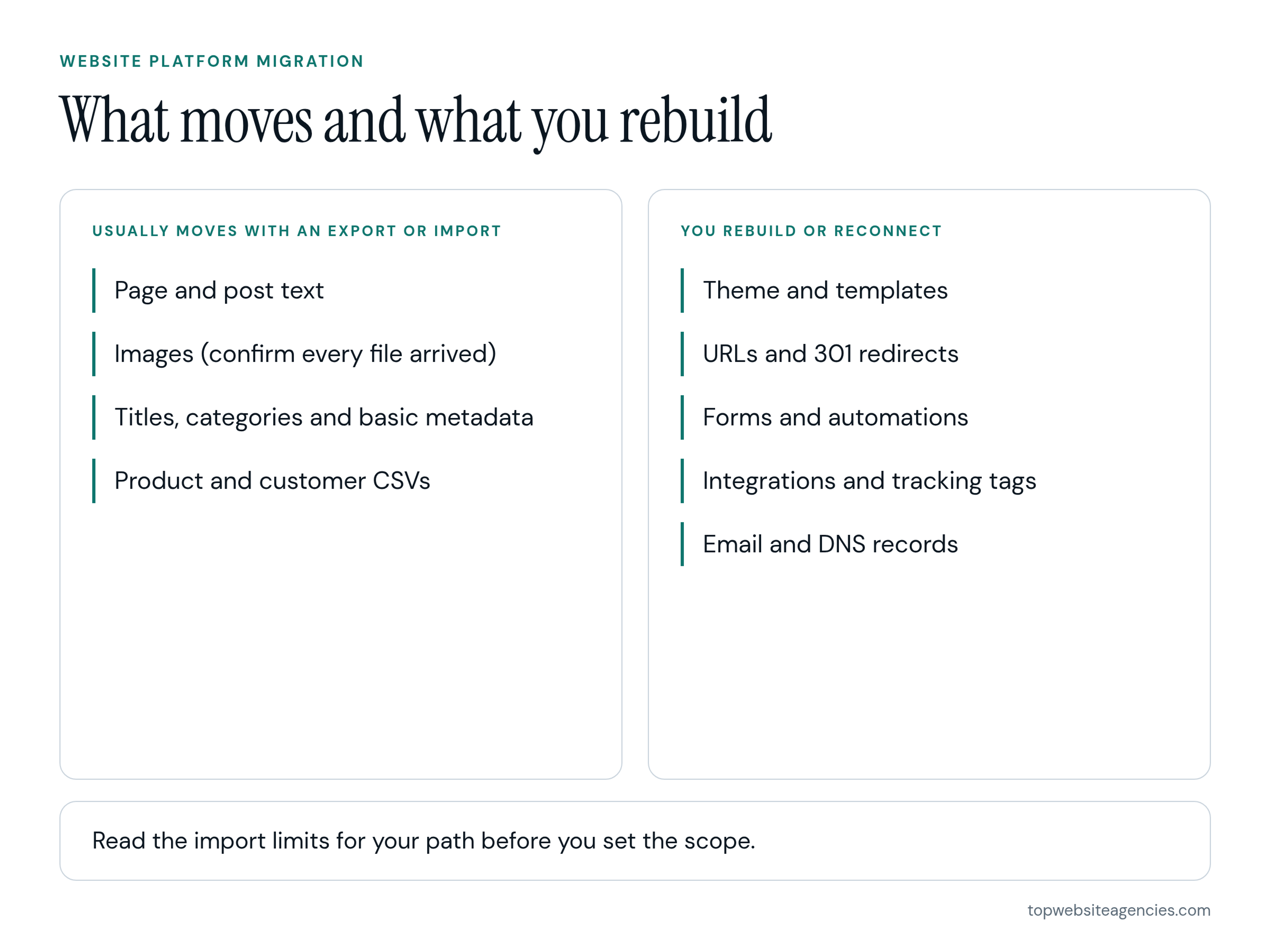
Text, images and structured items such as products can usually move through an export and an import. Design, URLs, forms, integrations and email settings are rebuilt or reconnected by hand.
Here is a plain inventory of what happens to each part of a site:
- Content and metadata: page and post text, titles, headings, categories and tags can usually travel in an export file. Meta titles and descriptions move only if both the export and the import carry those fields, so test one sample page.
- Media: images, PDFs and video do not always come along with the text. Some paths carry only references to the files, so confirm that every file lands in the new media library.
- URLs: each platform builds paths by its own rules, so assume old URLs will not match new ones until you map them.
- Forms and automations: form code, notification routing, autoresponders and newsletter sign-ups are normally rebuilt on the new platform.
- Integrations and tracking: analytics, ad pixels, CRM connections, chat widgets and the cookie consent banner are reinstalled and checked.
- Users and accounts: member or customer lists may export, but password handling differs between systems. Plan for resets, and recreate staff logins.
- Ecommerce data: products, customers and orders can often move with a tool. Variants, discounts, tax, shipping rules and payment settings still need checking.
- Email and DNS: domain records, including those that route your email, live at your registrar or DNS host, not inside the CMS. Copy them before you touch anything.
- The theme: design templates do not transfer between platforms. The layout is rebuilt on the new system.
One scoping model puts numbers on this. Progressus, a WooCommerce development agency with its own replatforming service, says in its 2026 article that about 20 percent of a migration is data that tools transfer and the other 80 percent is rebuilt. It describes moves to WooCommerce, and in its own words, "This 20/80 split is our own scoping model, not an industry standard." Read it as a reminder that data transfer is only part of the job, not as a formula for your site.
Next step: go through the nine items above for your site and mark each one "moves", "rebuild" or "drop". That marked list is the start of your scope.
What Official Import Paths Actually Carry Over
The official export and import tools carry content, not your whole site. Each one has limits that are easy to miss until you hit them.
I read the live Google results for this query on Nov 23, 2026, and I re-read the Mailchimp and Makers' Den guides. Both explain what a migration is and how to plan one, but neither has a section on what each platform's import tool carries over. So I read the platform pages themselves: WordPress.org's export page, Webflow's CMS import page, Shopify's product CSV page, Ghost's WordPress migration page. What follows is what those pages say as of Nov 24, 2026. Platforms change these pages, so check the current version before you commit.
WordPress export (WordPress.org documentation, page shows a last update of June 8, 2024):
- The export is an XML file in the WXR format.
- It covers posts, pages, custom post types, comments, custom fields, categories, tags, custom taxonomies and users.
- Choosing "All content" also covers navigation menus.
- You import the file into another WordPress site with Tools > Import.
- The page does not list Media Library files among the content types, so I would treat image transfer as something to verify, not assume.
Webflow CMS import (Webflow Help Center, page shows "Updated August 18, 2026"):
- It imports Collection items from a CSV file, and the file can be up to 4 MB.
- Image fields take a direct image URL. Images imported this way do not get responsive variants (srcset and sizes).
- No data maps to the file field, so you upload those files manually after the rest of the data is in.
- The number of items you can import depends on your site plan.
- Webflow says rich text embeds may be cleaned, with unsupported elements, classes and attributes removed.
- It adds that CSVs exported from other systems, WordPress among them, are typically already structured in a way that works with Webflow.
Shopify product CSV (Shopify Help Center):
- The product CSV cannot exceed 15 MB.
- Re-sorting the CSV in a spreadsheet editor can separate products from their image links, and the product images are then lost. Shopify warns about this explicitly.
Ghost WordPress migrator (Ghost developer docs):
- The migrator in Ghost Admin takes the WordPress export XML ("All content") and imports posts and pages.
- Ghost confirms the number of posts and pages before the import runs.
- The page says you may need redirects so that backlinks lead to the correct content.
- As of November 24, 2026, according to the same Ghost developer docs page, the limits are XML files up to 100mb, up to 2,500 posts, and custom post types not supported.
Notice what none of these pages describes: your theme, your forms, your tracking scripts or your DNS. Those stay on your list.
Next step: copy the limits that apply to your path (file size, image handling, missing fields) into your inventory as a "known gaps" line, and plan who fills each gap.
URLs and Redirects Without Repeating a Redesign SEO Plan
Your old URLs will rarely match the new platform's paths, so every old address that matters needs a permanent (301) redirect to its closest new page. The full method lives in a separate guide.
I checked our own live blog and sitemap on Nov 24, 2026. There is no migration article, and our redesign SEO guide already covers the redirect map, the crawl and benchmark, staging noindex and post-launch monitoring in detail. For all of that, use the full redesign SEO checklist and do not duplicate it here.
What matters specifically for a platform switch:
- Paths differ by platform. Some systems let you define a custom structure, while others add fixed prefixes. Check what the new platform will generate before you write the map.
- Map page to page. I'd match each old URL to the most relevant new page, and avoid sending everything to the home page.
- Check the importer's own notes. As noted above, Ghost's page says you may need redirects after importing from WordPress.
- Keep the old list. Export your live URL list before launch. It is the input for the map and for the checks afterward.
As of November 24, 2026, official platform limits also apply. Webflow's redirects help page says that to add 301 redirects, your site needs a paid Site plan, or it must be part of a Workspace with a paid Workspace plan. The same page says Webflow currently doesn't have a hard limit on total redirects and recommends 1,000 maximum as best practice (updated May 19, 2026). Shopify's URL redirects help page says you can create a maximum of 100,000 URL redirects unless the store is on the Plus plan, which has a maximum of 20,000,000 URL redirects.
Next step: export every live URL into the worksheet below and add a column for the new address.
Forms, Integrations, Email and Analytics
The parts of a site that break silently are the ones that are not pages: forms, connections, tags and email. Nothing looks wrong on screen, but leads, orders or messages stop arriving.
Test each of these on staging, then again after launch:
- Form submissions: submit every form with a real address. Confirm the message reaches the right inbox (check spam too), the confirmation message appears, and the entry lands in your CRM or email list if it is supposed to.
- CRM and payment connections: reconnect them, then place a test order or create a test lead. If your payment provider offers a test mode, use it before going live.
- Tags and consent: confirm analytics and ad tags fire once, not twice and not zero times. Check that the consent banner appears and that tags respect the choice.
- Email deliverability when DNS changes: before you change DNS records for the website, copy every existing record, including the ones that route and authenticate your email. A website cutover should not change them by accident. Send a test message to and from your domain afterward.
- SSL: check that the certificate is active on the main address and its variants, and that pages load without browser warnings about insecure content.
- Accounts: if you have members or customers, log in as one and confirm the reset flow works.
Next step: turn this list into a test sheet with a "who checks" and "date" column, and run it before and after the DNS switch.
How Much Does a Website Migration Cost?
Cost depends mainly on how much there is to move and rebuild, and on who does the work. The only published ranges I found are from one WooCommerce agency, so treat any figure as an illustration, not a price for your site.
What drives the cost:
- Number of pages, posts and content types
- How clean and consistent the existing content is
- Number of templates to rebuild
- Forms, integrations and tracking to reconnect
- Ecommerce records (products, customers, orders)
- URLs that need redirects
- Testing time
- Whether a redesign is bundled in
Some tool vendors price by volume. Cart2Cart, a shopping-cart migration service, says its price depends on the source platform, the target platform and the number of items (products, customers, orders). It also offers a free Demo migration.
Agency ranges are much wider. Progressus published these figures in its 2026 article on migrating to WooCommerce: $500 to $3,000 if you run the data transfer yourself with migration tools, and $5,000 to $60,000 or more if a specialist agency runs the whole project. It breaks that down into three levels: straightforward at $5,000 to $15,000, intermediate at $15,000 to $35,000, and complex at $35,000 to $60,000 or more. These are one agency's ranges for moves to WooCommerce, not a market survey, and the agency offers this work as a paid service.
How to ask for a quote: the inventory is the input. Send the same completed worksheet to every team you talk to and ask for a line-item estimate: content import, template rebuild, forms and integrations, redirects, testing, launch support. Quotes based on the same inventory are far easier to compare than quotes based on "we're moving our site."
Next step: finish the inventory worksheet below before you request any quote.
Is There a Free Way to Migrate a Website?
Yes, for a small, simple site you can often migrate for free using the export and import tools the platforms provide. It stops being a safe route when the site has orders, search traffic you cannot lose or many integrations.
What the free route looks like:
- Platform tools: export from the old platform and import into the new one, as in the WordPress, Webflow, Shopify and Ghost paths above. I did not see a separate fee for these import tools on the pages I read, but your time is not free, and the gaps (media, file fields, design) are still yours to fill.
- A free Demo: Cart2Cart offers a free Demo migration, which can help you see what its tool does with your store before you pay for a full run.
- Manual rebuild: for a handful of pages, copying text and re-uploading images by hand is often the simplest method.
Where it stops being safe:
- You have an online store with orders and customer records.
- The site has many URLs, or brings in meaningful search traffic.
- Content depends on custom fields that the new platform has no equivalent for.
- Several forms, CRM connections and payment flows must work on day one.
- Nobody on your side is comfortable with CSV files or DNS records.
Next step: count your pages, forms and integrations. If the totals are small and nothing is transactional, try the free route on a staging copy first.
Do It Yourself or Hire Help?
Do it yourself when the site is small, simple and low risk, and hire help when revenue, search traffic or complex integrations depend on getting it right. The deciding factors are risk and skills, not the number of pages alone.
Criteria I'd weigh (this is my opinion, not a rule):
- Revenue and leads: does the site take orders or generate leads daily? Mistakes cost more.
- Search traffic: if organic traffic matters, redirects need an owner who understands them.
- Technical comfort: CSV files, DNS records and tag managers are normal tasks for a developer and unfamiliar for many marketing teams.
- Time and attention: a migration pulls someone away from regular work for the whole project.
- Ongoing ownership: someone has to maintain the new platform after launch.
If you hire, put these in the scope:
- A migration inventory, delivered before work starts
- A redirect map for review
- Content and media import, with a check that files arrived
- Forms, integrations and tracking rebuilt and tested
- Launch-day tasks, including who changes DNS
- A rollback plan
- Post-launch fixes
- Ownership of every login and account
What to write into a web design statement of work covers the paperwork side.
Questions I'd ask any team:
- Can you show me a migration inventory you have used on a past project?
- Can you show me a redirect map and explain how you build it?
- What is your rollback plan if something fails after launch?
- Who lowers the DNS TTL, and who holds the DNS login?
- Which parts of my inventory are out of scope?
Next step: if you decide to hire, compare studios in our rankings, which use one vetting score and take no payment for placement. Bring your completed inventory to each conversation.
A Six-Step Migration Plan
A safe migration follows six steps in order: inventory, map, build on staging, test, cut over DNS, watch. The order matters because each step feeds the next.
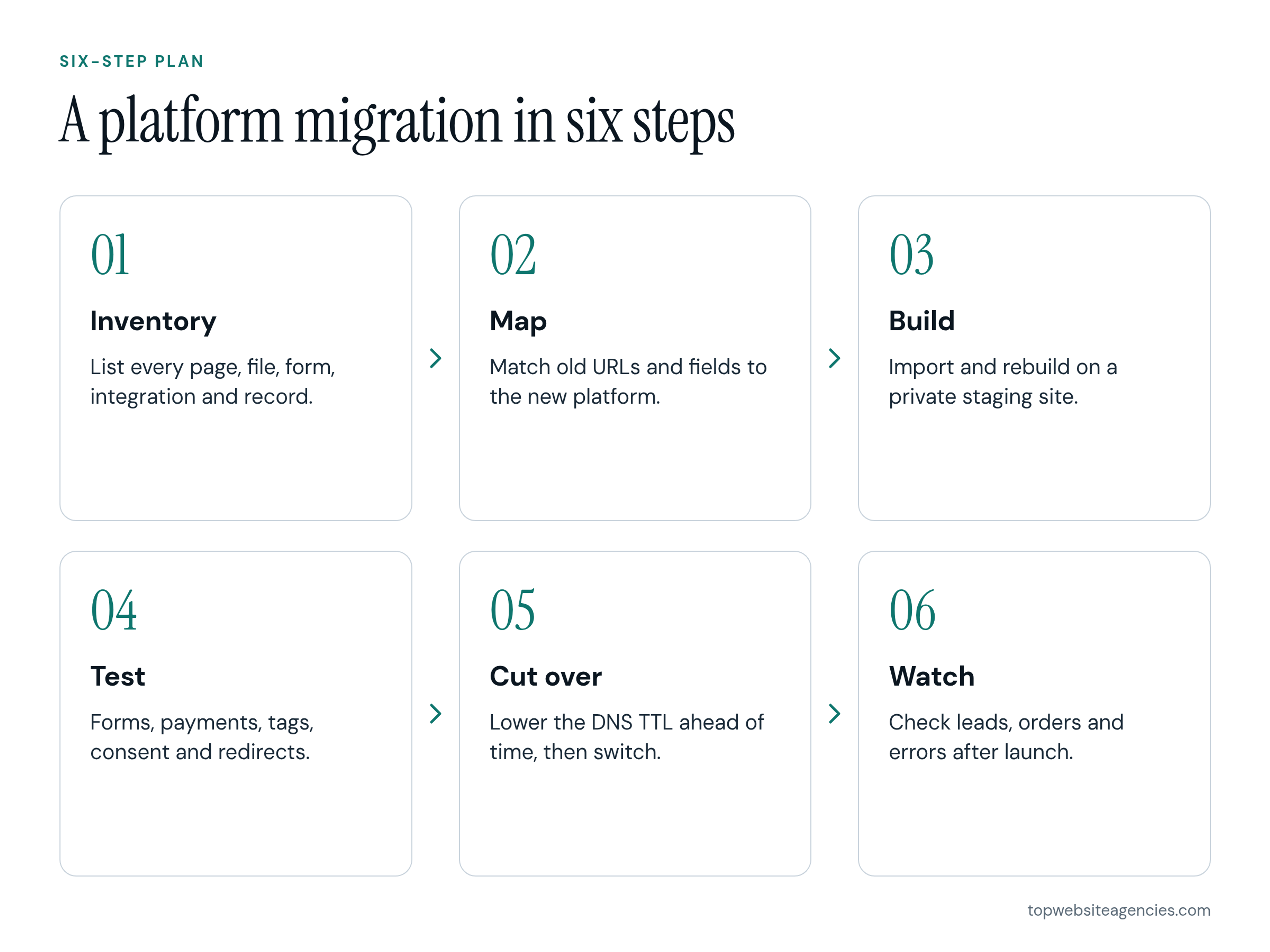
- Inventory. List every page, media file, form, integration, user list and ecommerce record. Use the worksheet below. Everything later depends on this list.
- Map URLs and content. Match each old URL to a new one, and each old content field to a field on the new platform. Decide what you will drop, not just what you will move.
- Build and import on staging. Set up the new site privately, import a small sample first, and check that text, images and metadata arrived. Then import the rest and rebuild templates, forms and connections.
- Test. Run your test sheet: forms, payments, tags, consent, mobile layouts, SSL and redirects. Agree who runs each check before launch day, and borrow the split in our guide on who runs which checks on launch day.
- Cut over DNS. The Cloudflare DNS FAQ explains that old data may stay cached until the previous record's Time-to-Live (TTL) expires, and that if you expect changes to records with large TTLs, it may make sense to reduce the TTL ahead of time. So lower the TTL well before launch day. Keep the old site intact until the new one is confirmed working, because that is your rollback.
- Watch after launch. Check form deliveries, orders, error pages, analytics and search tools regularly. Fix broken links and missing redirects as they appear.
Next step: put a date and an owner next to each step before you start.
A Migration Inventory Worksheet
A worksheet turns "move my site" into a list someone can price, build and check. Copy these fields into a spreadsheet and fill one row per item.
Fields:
- Item (page, post, product, file, form, integration)
- Current URL
- New URL
- Content type or template
- Decision: move, rebuild or drop
- Owner on your side
- Media attached
- Forms and integrations on the page
- Redirect needed (yes or no)
- Tested (date and initials)
- Notes and known gaps (from the import limits above)
Illustrative example. All names and counts below are made up. The site is a fictional 40-page consulting site moving from one CMS to another, and it has no company name on purpose.
- Pages (illustrative): 40 in total: home, about and contact (3), service pages (6), team bios (8), blog posts (23).
- Media (illustrative): 30 images, 4 PDF downloads, 2 embedded videos.
- Forms (illustrative): contact form, newsletter sign-up, gated-download form.
- Integrations (illustrative): analytics script, CRM connection, email marketing list, cookie consent banner.
- Domain and email: records copied before the DNS change.
What this fictional inventory tells the team: 40 old addresses need mapping, 4 downloadable files need relinking, 3 forms need testing end to end, and 4 integrations need reconnecting. The CMS import covers mostly the page and post text, and everything else is on the list.
Next step: fill in your own version for your top-traffic pages first, then the rest.
Frequently Asked Questions (FAQ)
How much does it cost to migrate a website?
It depends on the amount of content, the templates, the integrations and who does the work. One WooCommerce agency, Progressus, published 2026 ranges for moves to WooCommerce: $500 to $3,000 if you run the data transfer yourself with migration tools, and $5,000 to $60,000 or more if a specialist agency runs the whole project. That is one seller's range, not a market survey, so use your own inventory to get quotes.
How to do a website migration?
Take an inventory, map old URLs and content to the new platform, then build and import on a private staging site. Test forms, payments, tags and redirects, lower the DNS TTL ahead of time and switch DNS, then watch the live site for errors and lost leads. Keep the old site available until you are sure the new one works.
What are the 5 types of migration and examples?
The five types are a platform or CMS change (WordPress to Webflow), a hosting move (same software, new host), a domain change (new name after a rebrand), a URL structure change (shorter paths on the same platform) and a redesign launched with a platform change (new brand identity on a different CMS).
Is there a free way to migrate my website?
Yes, for small, simple sites. Use the old platform's export and the new platform's import, or rebuild a few pages by hand. Cart2Cart also offers a free Demo migration for stores. It becomes risky with orders, heavy search traffic, custom fields or many integrations.
Conclusion
A platform migration moves your content, and your team rebuilds or reconnects everything else. Start with an inventory, read the import limits for your path, treat redirects, forms and DNS as part of the scope, and test before you switch.
If you want help, compare studios in our rankings and bring your finished inventory to each conversation.